Instantly ViewSelected Properties
QuickProp gives you instant access to every property with powerful tools to sort, filter, and modify your selection.
QuickProp gives you instant access to every property with powerful tools to sort, filter, and modify your selection.
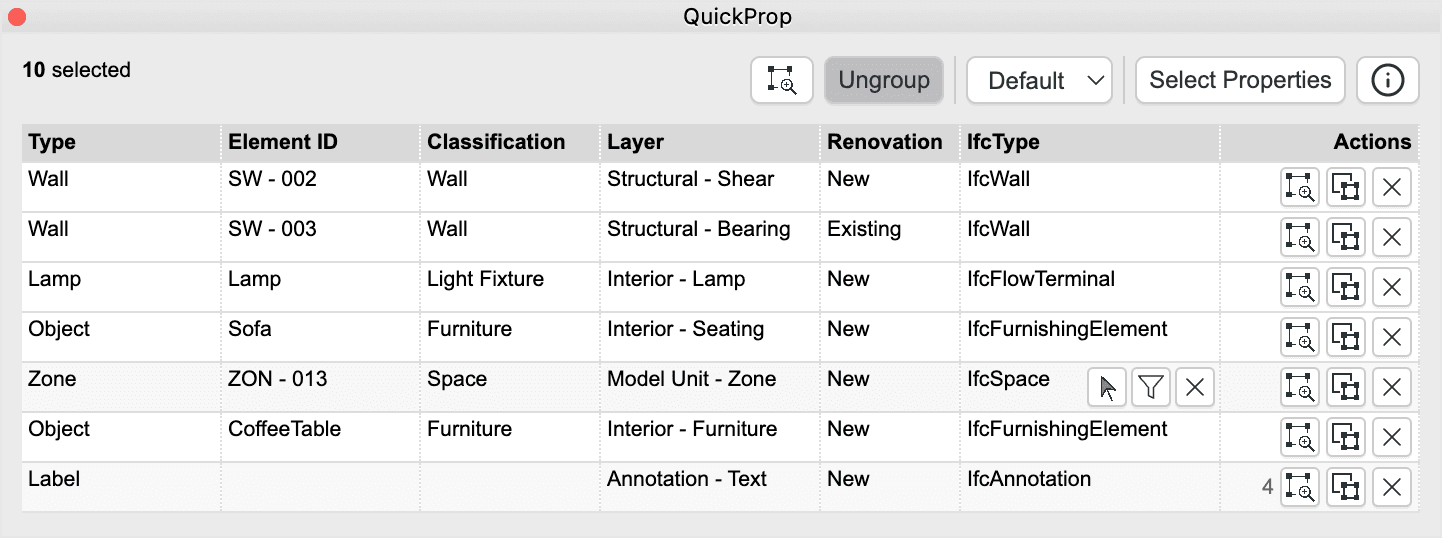
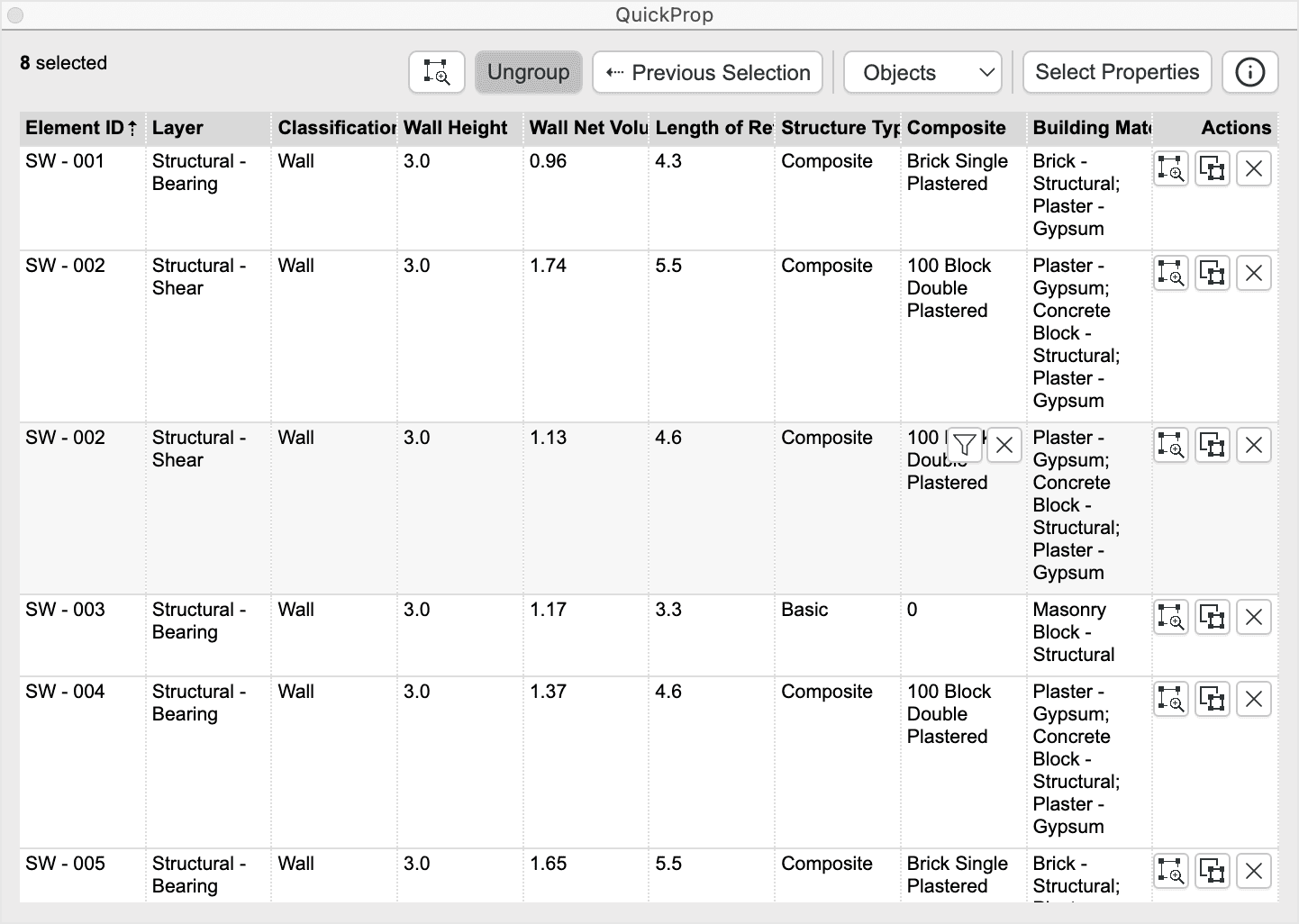
View all properties of selected elements, including built-in, user-defined (custom), and critical data for MEP elements.
List the properties for multiple elements and check the values for data consistency or to spot any errors.
Handy controls within the table cells to Select / Deselect elements based on property value.
Save your preferred set of properties and reuse them across multiple projects for a consistent workflow.
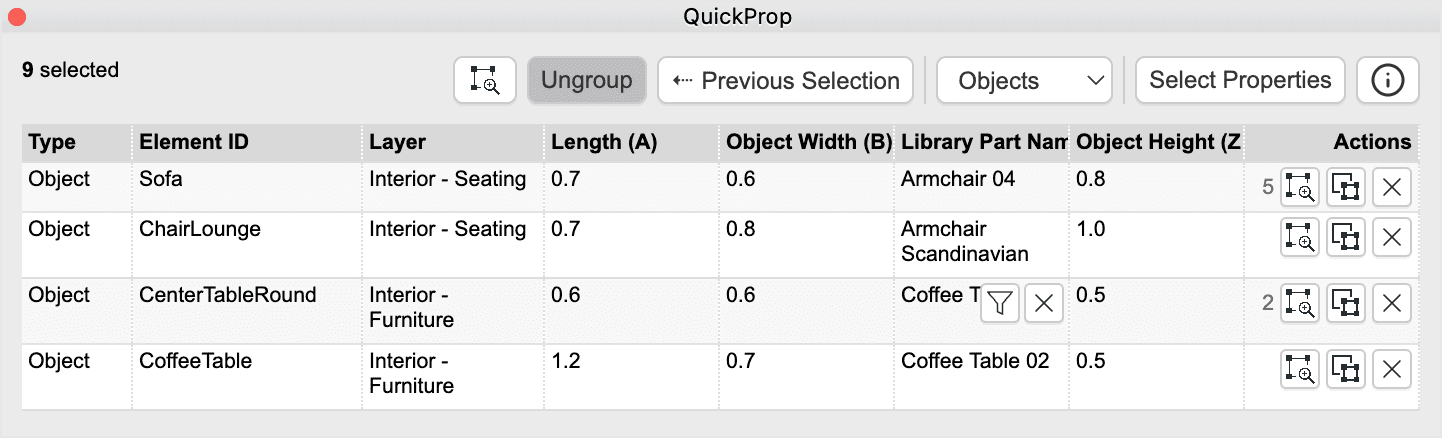
All selected elements are displayed in a clear, spreadsheet-like table. Choose which property columns to display for your current task.
Instantly sort and filter your selection by any property—type, ID, classification, layer, renovation status, and more.
Intuitive controls and grouped properties for an efficient, personalized view.
A flexible tabular layout ensures a fluid user experience.
A side-by-side look at why QuickProp is the essential palette for power users and BIM managers.
Select any elements in your model—QuickProp instantly shows all their properties in a flexible table.
Toggle the Properties panel and select the properties you want to see -- built-in or custom. Use the search bar to find the property you are looking for.
Filter and sort to find exactly what you need, even in large, complex projects. Focus on what matters.
Batch select/filter elements based on properties from right within the table cells.
Ready to experience the difference? QuickProp is the essential palette for power users who need quick access to their model data.